

- Background Eraser

Google Chrome

Tinder - Dating & Meet People

DiDi-Rider

Calm

Life360: Family Locator & GPS Tracker for Safety

Spotify: Discover new music

Waze

Amazon Shopping
Advertisement
Additional Information
-
- Developer
- Bitrix Infotech Pvt Ltd
-
- OS
- Android
-
- Price
- Free
-
- Total
- 122
-
- Genre
- Photography,
Advertisement
-
Update:
September 25, 2019
Size:
5.5M
Version:
1.0.6
Compatibility:
Android 4.1 and up
Content Rating:
Everyone
-
Update:
Size:
Version:
Compatibility:
Android 4.1
Content Rating:
Everyone
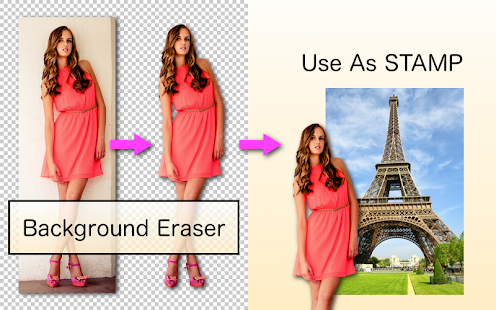
Introduction to - Background Eraser
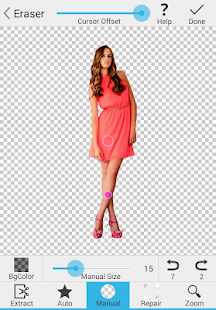
This is an application for cutting pictures and for making a picture's background transparent. The resulting images can be used as stamps with other apps to make a photomontage, collage. Features ☆ "Auto" mode ☆ Erase similar pixels automatically. ☆ "Extract" mode ☆ Select and erase objects which you want to remove accurately, by using blue & red markers. ☆ it's very important to make a picture's background transparent accurately if you want to superimpose photos and make good composite photos. By using this app, you can do it better.
1. Manual erasure (erasing)
Your finger will become your eraser. Yes, you can erase anything. It has a "size" option and an "offset" option.
(I) Size.
You can increase or decrease the size of the eraser as needed to erase as much as you like
(II) Offset.
You can set the offset to drive the eraser so that you can view photos as well as those you can easily delete.
2. Automatic erasure
It is the magic eraser. Yes, automatically detects the edges of the photo and removes all parts of your selection. It has the "Thresold" option.
(I) Threshold.
The threshold value is used to define how much depth of edge analysis to perform. Therefore, if you want a deeper analysis of the edges, then we recommend selecting a higher threshold.
3. You can select which parts of the photo you want to keep. Photos that are not selected will be deleted. It has a "Size" option and an "Offset" option, which will work as described above.
4. Recovering photos
You can restore a photo when you delete an unwanted part of it. When you click Restore you will have the whole photo and the part you deleted will be selected as a layered photo, you can now use the Eraser to delete layers and restore the deleted part of the photo. As with the Lasso tool above, the Hand tool has the Size option and the Offset option and these functions will work as described above.
5. Zoom
You can zoom in and out so that you can see the photo clearly. Delete a part of the photo.
6. Colour
You can apply different colour effects to cropped photos. We have a great list of filters.
7. Undo
You can gradually restore a photo as you delete it.
8. Redo
After restoring a photo you can move the same foot backwards.
9. Reset
Reset will bring you the photo selected from the drive. Note: All changes you have made will be lost and the background eraser will start from "First", after selecting "Reset", "Undo" and " Refresh" will not work.
10. Fit to screen
When zooming in and out of a photo, the Fit screen will fully display your photo by setting the zoom level.
11. Save/export the edited gravure as JPG or PNG - >Save/export your photo when you are done.
Save/export your photos once you have finished your work.
- Good App Guaranteed:
- This app passed the security test for virus,malware and other malicious attacks and doesn’t contain any theats.
Recommended for you
-

- Truecaller
- Brief Truecaller is an app where you c

- Tango
- Tango is a free online messaging and vid

- Firefox Browser
- Provided by Mozilla Company, Firefox Web
-
- Live Weather
- Download the most popular free local wea

- Room Temperature
- Room Temperature helps you to get estima

- Snapchat
- Snapchat is a photo-sharing application
Hot Games
-

- Minecraft
- Ultimate Sandbox Experience for Everyone

- ROBLOX
- If you like playing Lego games, then you

- Toca Boca World
- Want to play a game where you can create
-

- Toca Boo
- Want to have fun spooking your family me

- Among Us!
- This is one of the top 10 best online ga

- Pokemon Go
- If you loved playing Pokemon games earli



Leave a Comment